
This is a simply little tutorial on how to use or turn on Read Receipts in Windows Mail.
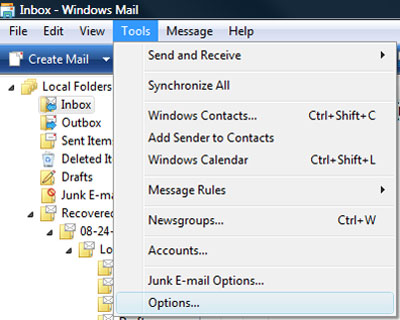
First go the tools menu and select “Options…”.
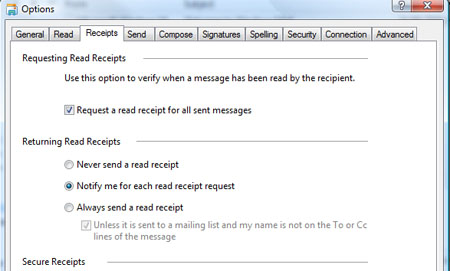
On the window above select the receipts tab, now you are presented with multiple settings for read receipts.
Tick the box for “Request a read reciept for all sent messages” and click OK.
And that’s it! Simple and easy, additionally of course you can choose if you wish to be notified every time about to request a read receipt or if they should be sent automatically.
Hopefully you found this tutorial helpful, so please comment!
[ad name=”posts”]
Facebook Comments
1 thought on “How to turn on Read Receipts with Windows Mail”